The set saves itself when the athlete reaches the rep target, so you can coach the group instead of the screen. Both features are in Plyomat 3.1.10 for iPhone, iPad and Android, and on app.plyomat.com.
Turn on Auto Save

- Sign in and choose your organization.
- Open Display and choose the mode, for example Vertical.
- Open Controls and set Rep target above 0. Close Controls.
- Select the athlete in the athlete picker.
- Tap the disk button in the footer, beside the Just Jump (JJ) button labelled JJ Mode. On a tablet it reads Auto Save Off; on a phone it shows the disk alone.
- Turn on the Auto Save switch. The sheet confirms On for Vertical only.
- Close the sheet. The footer button is lit gold.
If the switch will not turn on, the sheet says what is missing: Choose an athlete first. or Set a rep target first.
| Offered in | Not offered in |
|---|---|
| Vertical, Contact, Reactive Strength Index (RSI), Drop Jump, Plyomat Power Score (PPS), Bounce Factor, and assessments with a rep target | Timer and Free, and tests with no rep target. Save those by hand. |
If you turn Auto Save off with reps on screen, the app asks Save this set before turning Auto Save off? Answer it before the athlete jumps again.
What happens at the rep target
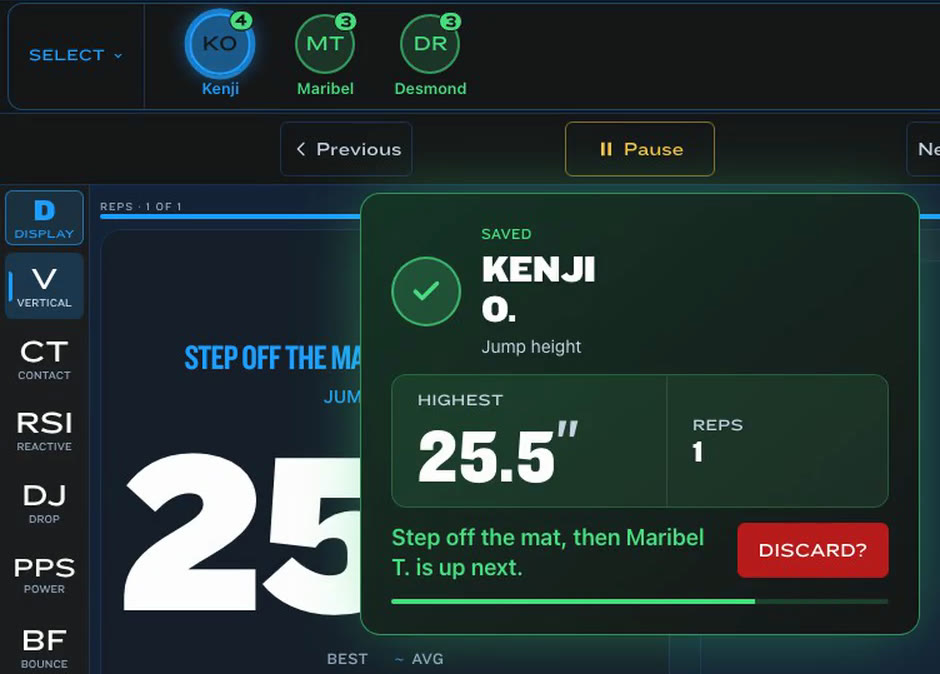
The set saves itself with exactly the target number of reps. In an assessment every rep is saved. A receipt appears with a green tick, Saved for Kenji O., and a Discard? button, and the footer button pulses twice. There is no sound or vibration, so look for the receipt before the next athlete starts.
With Auto Progress on, the receipt also names who is next, for example Step off the mat, then Maribel T. is up next.
| Mode | How the next set starts |
|---|---|
| Vertical, RSI from on the mat, PPS, Bounce Factor | The athlete steps off. The next set starts when they step back on. |
| Contact | The set saves as the athlete leaves the mat after the last contact. The next set starts a moment later. |
| Drop Jump, and RSI from a box | The athlete starts off the mat. The next set starts about a second after the save. |
Discard a set that saved itself
- Tap Discard? on the receipt. It is offered for about six seconds.
- Read the result. The receipt changes to Discarded and closes after about three seconds.
With no connection, the receipt says Discarded on this device. It leaves Sessions after the next sync. If the discard fails, it says The set was not discarded. Try again. and stays open for about fifteen seconds.
There is no Undo after the receipt closes. To change or remove the set, open Sessions and edit or delete it there. If a rep was not a true effort, such as a double bounce or a stumble, discard the set and run it again.
Rotate a group with Auto Progress
- Turn on Auto Save for the mode and set the rep target.
- Tick at least two athletes in the picker, in the order they will jump. To change the order, untick and tick again.
- Make the first jumper the active athlete.
- Turn on Auto Progress in the Auto Save sheet, before the first jump.
Auto Progress starts from the active athlete, follows the order you ticked, and goes back to the first after the last. With five athletes selected and the third active, the order is 3, 4, 5, 1, 2.
| Athlete control | What it does |
|---|---|
| Previous | Back one athlete. |
| Pause | Stops recording until you tap Resume. The screen reads Paused. Jumps are not being recorded. |
| Next | Skips to the next athlete. |
| If the sheet says | What is missing |
|---|---|
| Turn on Auto Save first. | Auto Save is off for this mode. |
| Set a rep target and pick an athlete. | One of the two. |
| Select two or more athletes. | Only one athlete is selected. |
| Save or discard the current set first. | An unfinished set is still on screen. |
During a rotation
- PPS needs each athlete’s body weight. When it is missing, the screen says Auto Progress needs a body weight. Tap here to enter it, or tap Next to skip.
- A rep target of 0 stops Auto Progress. Set a rep target, then turn Auto Progress on again.
- Drop Jump and RSI from a box: the next athlete’s set opens about a second after the save, so a jump the finishing athlete makes after that counts for the next athlete. Ask each athlete to walk clear of the mat after their last drop.
In assessments
Each selected athlete does the current test once. When all of them have, the screen says Everyone has completed, names the test, and asks you to choose the next test. Tap Run it again to repeat it. The test never changes by itself.
A single-leg test must reach the target on both sides before it saves. After the first side the screen says Left done. Now Right. If a set would save with one side done, the app offers Save left only or Continue to right.
Changing athletes while Auto Save is on
Every rep belongs to the athlete who was active when it landed, so the picker refuses a change that would leave reps without a clear owner. The reason shows inside the picker.
| The picker says | What to do |
|---|---|
| End or reset this set before changing athletes. | End or reset the set first. |
| Save, discard or reset this set before changing athletes. | The set has ended and is waiting for you. |
| Wait for this set to finish saving before changing athletes. | Give the save a moment. |
| Retry the save before changing athletes or reps. | A save failed. Retry it first. |
| Wait for the athlete to land before changing athletes. | The athlete is in the air. |
| The mat is still finishing a change. Try again in a moment. | Wait, then try again. |
| The athlete list is still loading. Try again in a moment. | Wait for the roster to load. |
If the current athlete has reps on screen and you pick someone else, the app asks Save Kenji O.’s set before changing athletes? Jumps made while the question is open are not added, so ask the athletes to wait until you answer.
No connection, failed saves and limits
Auto Save works without an internet connection. The receipt is gold and reads Queued offline for Kenji O.: the set is stored on the device and sent when the connection returns. This applies to Auto Save only, not to sets you save by hand. Other devices, reports and Plyomat TV see the set once it has been sent.
A failed save holds the set and blocks athlete and rep changes. The screen says Retry the save first. Tap Retry Auto Save before the next athlete jumps.
- Save before you close the app. Do not close it while reps are on screen, a save is in progress or a question is open.
- If the controller disconnects, reconnect it and check the set on screen before the next jump.
- Auto Save needs a signed-in organization and an athlete from its roster, so it is not available in Display Only.
- It runs on iPhone and iPad with iOS 15 or later, on Android 7.0 or later, and on app.plyomat.com in Chrome on a computer or an Android device.